Contents / Appendix F /
This appendix describes how TTS for WireLess TelNet works.
TTS (Text To Speech) allows a PDA to read out loud, because it can convert a written text into speech. The TTS Engine used by WireLess TelNet is NUANCE's RealSpeak Solo.
The PDA must be "Voice Ready", i. e., it must have a sound card.
WireLess TelNet has two modes for turning written text into speech (TTS):
This modes can be used together or separated. They are regulated by TtsPrinterOn and TtsScreenOn variables.
You can see a description of all the TTS variables on Chapter 7, 6.XIX [TTS].
Working principle:
Under "Screen Reading" mode, WireLess TelNet converts into speech any
text located between two tags.
Activation:
TtsScreenOn variable allows to activate or deactivate this mode. Beginning
and end tags should be specified on other variables.
WireLess TelNet reads the screen when it is displayed to user.
The application scans the screen searching for the beginning tag (TtsScrSayTagBeg).
If it founds this first tag, then it will search for the end tag (TtsScrSayTagEnd)
and the text located between both tags will be converted into speech by TTS
engine.
After reading, the tags are modified by the application, so the reading is
performed just ONCE.
The reading direction is from left to right and from top to bottom of the
screen, throughout its 24 lines and 80 columns.
Example:
Display this text:
SAY: The emulator will read this :SAY
When using this reading mode, it is very important to master screen refresh:
On a server running under Windows OS context, Telnet server behavior may vary according to the implementation used (SLNet, Georgia) and the server configuration.
It is not possible to send "escape" sequences meant to regulate the TTS engine reading mode (G.I.4) on this reading mode, because these sequences aren't compatible with VT220 escape sequences.
Under "Screen Reading" mode, the characters that arrive to TTS
engine pass through the translation system for WireLess TelNet displaying for
them to be converted from ASCII-8bits codes (Telnet transmission mode) into
UNICODE codes (Windows displaying and TTS engine character set).
Special characters: If they appear properly on screen, they will be
interpreted correctly by the vocal module. It is very important to select the
corresponding translation mode (see Chapter 5, 5.III
[EMULATION] Section, TranslatorType option).
Working principle:
Under "Screen Reading" mode, WireLess TelNet converts into speech any
text sent to the attached printer.
Activation:
This reading mode can be activated and deactivated with TtsPrinterOn
variable.
On DEC/VT standard (VT100, VT220, etc) there's a sequence that allows to send text towards the printer (usually connected by serial port): start printing <ESC>5[i / end printing <ESC>4[i.
There's a description of DEC-VT "Print Controller" sequences on Appendix A,
A.III.10 Printing.
See: http://www.sof2go.net/man/wtn/wtncevt/en/Anx_A_Page.htm#A.III.10
The text and the escape sequences located between these tags are usually sent to printer. But if the "Print Reading" mode is activated, these texts are sent to TTS engine.
This reading mode allows to introduce escape sequences sent to TTS engine.
On this reading mode, characters aren't treated by the same translator as the display. Notice that on the host computers the character map is usually UNICODE, which is converted into ASCII-8 for the Telnet protocol, then into UNICODE for the TTS engine. There are two variables, TranslatorUse and TranslatorName, that allow to select the translation table from ASCCI into UNICODE (see Chapter 6, 6.XIX [TTS]). If there's no translator specified, UNICODE characters (16 bits) are obtained by making a mathematic conversion from 8 bits into 16 bits.
For a documentation about character translation tables, see Chapter 5, 5.XIX Introduction to the Character Map and 5.XX TRANSLATION TABLES.
The sequences supported by TTS engine are documented on the following manual:
Escape Sequences (PDF)
See: http://www.sof2go.net/man/uti/voice/RealSpeakSoloEscapeSequences.pdf
These sequences should be present on the text that will be read by TTS.
Activate TtsPrinterOn and TtsPrinterOn modes on the PDA.
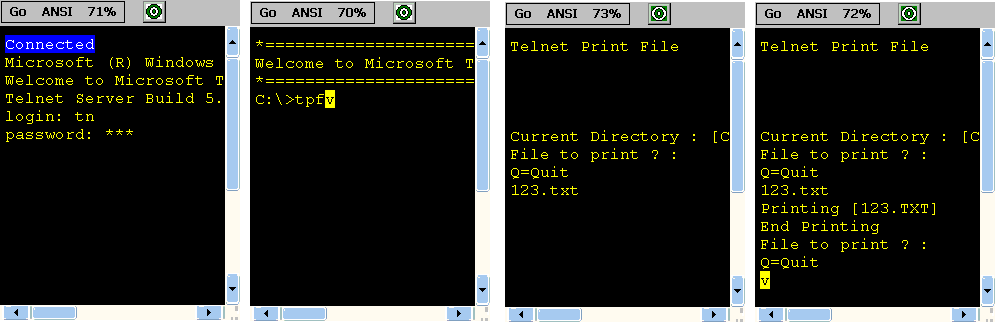
In order to test "Print Reading" TTS system under Windows OS (here Windows 2000):
In order to test "Screen Reading" TTS system under Windows OS (here Windows 2000) :
@echo off
cls
echo TEST TTS
echo PREMIER
echo SAY:premier
echo test fonctionnement
echo du TTS
echo en français
echo :SAY
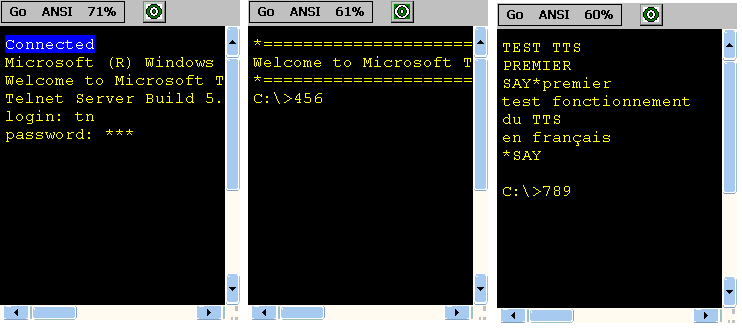
Warning: If you launch TWICE THE SAME FILE 456.bat, since Telnet Windows
is "smart" it won't send a new image to the PDA screen, because it is
identical, so the terminal won't reed the screen again. Thus, if you want to
launch the same file twice, press:
456[ENTER]
cls[ENTER]
456[ENTER]
cls[ENTER]
Contents / Appendix F /