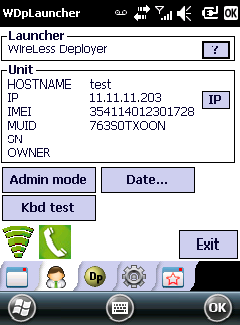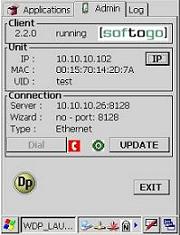
If IP: ???.???.???.??? or MAC: 00_00_00_00_00_00 please contact your network administrator because your network is not properly configured
1 Updating packages
2 Launching applications
3 Requesting for help by GPRS
4 Requesting for help by GPRS through a VPN Server
If you want to update a package select UPDATE from the main window of the WireLess Deployer Client on your mobile unit:
|
|
If IP: ???.???.???.??? or MAC: 00_00_00_00_00_00 please contact your network administrator because your network is not properly configured |
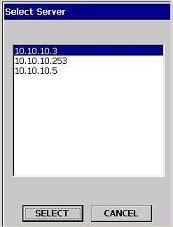
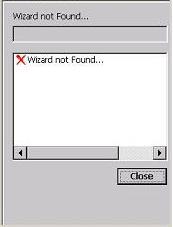
Then, select the server from the available servers list. If there is only one server available, it will be automatically selected. If there are no servers available ("Wizard not found") please ask your network administrator.
|
|
|
After you select the Server, WireLess Deployer verifies if there are new packages to install or to update. The following window is displayed if the mobile unit is up to date:
It is possible to configure the Client (see Configuring and installing the WireLess Deployer Client) for it to always get connected to the same server. If this option is set, the wizard is deactivated, so when pressing UPDATE on the main window, you will go straight into the last window displayed.
"Launcher" mode must be activated (Client configuration, "Application" section, "launcherMode" option) for this window to be displayed.
If you want to launch an application select APPLICATIONS from the main window of the WireLess Deployer Agent. You will see the application's name and version at the left bottom of the window. Then choose the application you want to launch from the list of available applications and press the "LAUNCH" button. In this example there is only one application available, but there could be more applications.
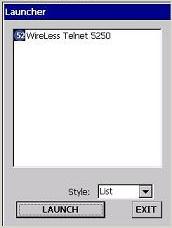
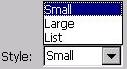
Notice that you can change the view of the list with the "Style" combo box:
After you press the "LAUNCH" button, the following window is displayed and the application is finally launched:
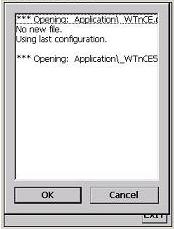
In case of any problem, WireLess Deployer Client allows the user to request for help by GPRS. This feature to send a Remote Control session request to the Administration Console.
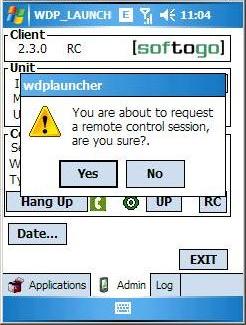
In order to start a Remote Control help request, just press on [RC] button, which is located on "Admin" tab. The following dialog will appear:
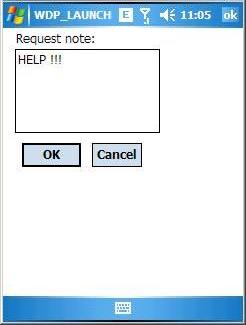
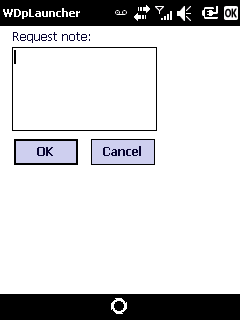
If you press [NO], no request will be started and the application will return to "Admin" tab. If you press [YES], the application will open a screen where you can write a request note the Administrator will receive with the help request:
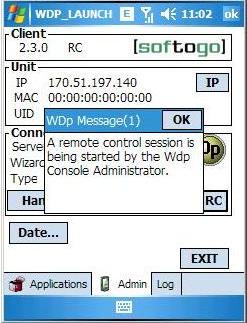
As soon as the Remote Control is started on the WireLess Deployer Console, a pop up window appears on the screen of the Client, informing that the Administrator is in control of the mobile unit:
The message "RC" appears on "Client" frame of
"Admin" tab while the unit is under Remote Control. When there's no
Remote Control, it says "running".
After receiving Administrator's help, you should end the GPRS connection from
the Client by pressing on [HANG UP] button.
To use the Remote Control Console to connect with a PDA with the Symphony/Wireless Deployer Client and use the PDA remotely from the console first you have to setup the VPN Server on the PC that has the Symphony Console.
For more information go to http://www.sof2go.net/man/spn/Config_2008_VPN.pdf
Then you have to download and register the Symphony Console.
For more information go to http://www.softogo.com/com/en/prod_spn.html
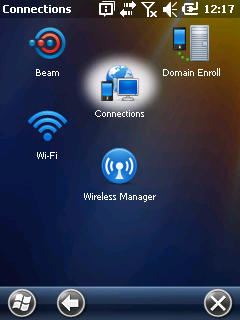
You can find the configuration of the PDA's connection on the start menu, select the icon Settings and tap on the Connections button, then select connections Again.
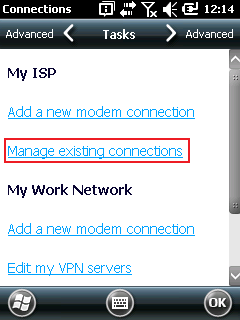
Then select Manage existing connections.
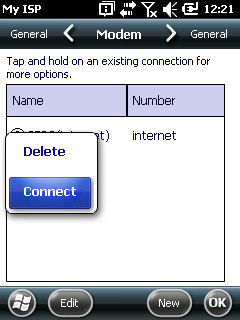
You will see the GPRS(internet) connection, tap it and hold it until you see some options, select Connect.
Go back to the connections menu, select Advanced and tap on the [Select Networks] button.
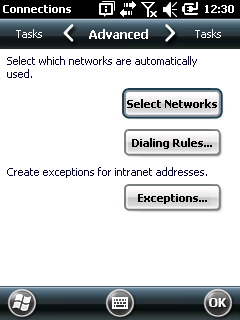
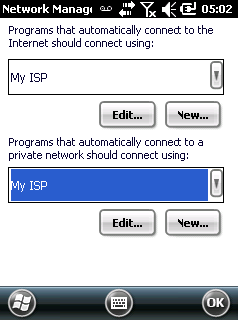
Select MY ISP on both combo box and tap on [OK], the GPRS setup is ready.
Go to the Start menu on the PDA and select the "wdplauncher".

On the third tab select the button [Rc] to start ask for a Remote Control Session with the console.
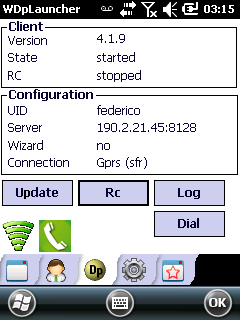
You will have to write a request note and then tap on [OK].
The connection will start and you will be able to see a new IP on the PDA, the IP will be from the VPN Server.