Help
File
3. Creating and Configuring Scripts
4.5 Setting the attributes of a file
5.1 Registry key alias for the preg command
5.3 Blanks spaces in the command's parameters
iPDA is an application that allows to control a PDA from a desktop PC. Some of the features of iPDA are file transfers, access to the registry and running other applications on a PDA remotely from a desktop PC.
These features can be configured with text based scripts.
It is very important to keep the device connected to the PC until iPDA finishes running any scripts.
This is the main user interface screen for iPDA.
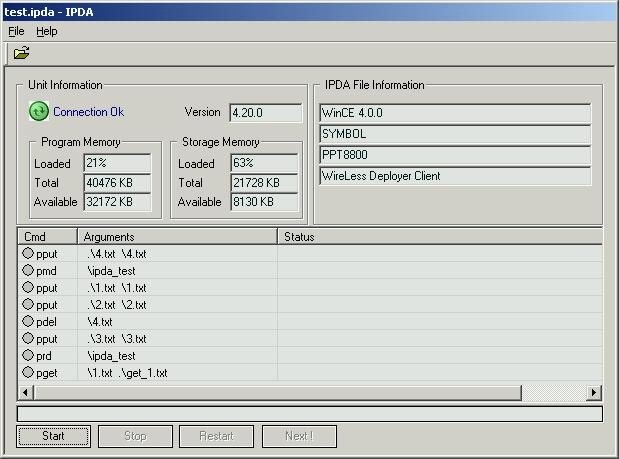
On the top of this screen you will find your PDA unit information. This feature will display information regarding the connection between the desktop PC and your PDA, the PDA's operating system and available memory.
The information provided on the right side is from the script that iPDA is going to run.
On the middle of this screen you will see the commands that iPDA is going to execute, its arguments and status.
You can use the buttons on the bottom of the screen or the Menu Bar to control iPDA.
iPDA uses text based scripts to perform operations between the desktop PC and the PDA.
These scripts can be created or modified with any text editor and must be saved as *.ipda files.
This is the source for the script that was loaded on the screenshot above:
// Script Heading
version 1.0.2
description WireLess Deployer Client
platform WinCE 4.0.0
model PPT8800
vendor SYMBOL
// Commands
pput .\4.txt \4.txt
pmd \ipda_test
pput .\1.txt \1.txt
pput .\2.txt \2.txt
pdel \4.txt
pput .\3.txt \3.txt
prd \ipda_test
pget \1.txt .\get_1.txt
This is the first part of a script. It is not necessary to provide this information but it is useful to identify the purpose of a script.
This information will appear at the top of the right side of iPDA's main screen.
Syntax:
version <Script's version. This does not appear on screen>
description <Script description>
platform <Operating System that the script is meant for>
model <PDA model that the script is meant for>
vendor <Manufacturer or vendor>
These are optional arguments that you can use to configure iPDA's behavior. They should be between the heading and the command section.
Syntax:
|
Argument |
Description |
| noerror or no_error | Prevents iPDA from stopping the script's execution in case of an error. |
| nonext or no_next | Disables the "Next" button. |
| setclock or set_clock | Sets the PDA's time and time zone to the PC's current time and time zone. |
| run_once | Executes the script only once. |
| autostart | Starts execution automatically. |
| autoexit | Closes the application when execution ends. |
This is the main part of any script. The operations that iPDA
can perform are listed below:
|
Command |
Syntax |
Description |
| pput | pput [-a|-k] <source_path> <target_path> | Copies a file from the desktop PC to the PDA. |
| pdel | pdel [-i] <file_path> | Deletes an existing file on the PDA. |
| prun | prun <file_path> | Runs a valid application on the PDA or, if supports, a batch file. |
| pget | pget [-a|-k] <source_path> <target_path> | Copies a file from the PDA to the desktop PC. |
| pmd | pmd [-i] <dir_path> | Creates a new directory on the PDA. |
| prd | prd [-i |-f] <dir_path> | Deletes an existing directory on the PDA. |
| preg | preg [-a] <registry_key> <target_path> | Exports a registry key from the PDA to a file on the PC. |
| pregmerge | pregmerge [-i] <source_path> | Imports the registry keys from a file stored in the PC to the PDA's registry. |
| pdelreg | pdelreg [-i] <registry_key> | Removes a registry key stored in the PDA. |
| pdelregval | pdelregval [-i] <registry_key> <registry_value> | Removes a value from a registry key stored in the PDA. |
| run | run <file_path> | Runs a local valid application or batch file. |
| warmboot | warmboot | The PDA performs a warmboot. |
| coldboot | coldboot | The PDA performs a cold boot. |
| psetclock | psetclock | Sets time and time zone to current PC time/time zone. |
| pmove | pmove [-o] <old_name> <new_name> | Renames an existent file or directory. |
| label | label <name> | Allows to define a label which can be used to make conditional jumps. |
| condj | condj msg buttons [go-to:label | jump:n] [options:option1,option2,option3] | Allows to make conditional jumps inside the script. |
| pappend | pappend <source_file> <target_file> | Appends source_file in target_file, target_file is stored in the PDA. |
| pamend | pamend -u|-a|-ua|-d [-i][-m][-c][-s] <source_file> <target_file> | Inserts, updates or deletes parts of a file stored in the PDA using another file stored in a pc. |
| preplace | preplace [-rline][-i][-m] target_file <target_substring> <new_string> | Finds lines that have a specific substring to modify them or replace them by new ones. |
| pgetdir | pgetdir [-c |-i | -r | -o] <source_directory> <target_directory> | Copies a directory from the PDA to the pc. |
| pputdir | pputdir [-c |-i | -r | -o] <source_directory> <target_directory> | Copies a directory from the pc to the PDA. |
| psetattribute | psetattribute +r|-r|+h|-h <target_path> | Sets the "read-only" and "hidden" attributes of the files located in a directory. |
| pkillprocess | pkillprocess [-i] <target_process> | Terminates a process that is running in the PDA. |
| waitforconnection | waitforconnection | Stops the script's execution until the connection with the PDA is re-established. |
| pause | pause seconds | Stops the script's execution for a specific amount of seconds. |
| pgetsysinfo | pgetsysinfo [-a] [-w] <file_path> | Saves the system information of the PDA in the given file. |
| goto | goto <label> | Jumps to the command located in the following line where the label was declared |
[-a]: Append mode. iPDA will add the source file or registry information to the target file instead of replacing it.
[-f]: Force the erasure of a directory. iPDA will delete all the files and subfolders of the folder that is about to be erased.
[-i]: Ignore errors. iPDA will ignore errors such as file not existing, directory not existing or already existing, line not found or tags not found.
[-k]: Keep an existing file. iPDA will warn the user if a file that is about to be written, already exists.
[-o]: Overwrites target. Works only with files. When moving a file, iPDA will overwrite the target file if it already exists.
Condj enables to make conditional jumps inside the script, allowing the user to stop the execution of the script, skip towards a certain line of it or continue normally with the execution, depending on the message buttons used.
A message box with the message contained inside "msg" is displayed to the user. Such message can be used to warn about a critical action e.g.: Cold/warmboot. Up to three buttons can be showed in the message box and its selection determines the next action to be executed.
The distance of the conditional jump is determined by the distance towards "label", if it has been defined, or the size of "n".
Syntax:
condj msg buttons [go-to:label|jump:n] [options:option1,option2,option3]
msg: a string that will be displayed in the message box.
buttons: the buttons that will be displayed in the message box can be the following constants: MB_CONTINUE, MB_CONTINUESKIP, MB_CONTINUESTOP, MB_CONTINUESKIPSTOP or the equivalent MB_YES, MB_YESNO, MB_YESCANCEL, MB_YESNOCANCEL.
CONTINUE: resumes the script's execution.
STOP: interrupts the script's execution.
SKIP: jumps to any line in the script using the options "go-to:label" or "jump:n". If none of them were used, condj will skip the next line moving to the following line.
go-to:label : if the skip button is selected, condj will jump to the command located in the following line where the label was declared.
jump:n :if the skip button is selected, condj will jump to the command located n lines away from the current one. If n exceeds the number of lines of the script, the following rules are applied: if n < 0 and the next line that will be executed is a negative one, the execution of the script will continue from the beginning; if n > 0 and the next line that will be executed is greater than the total lines of the script, the execution will be stopped.
options:option1,option2,option3: three strings that can override the options shown in the message box.Examples:
Basic use
pput config.cfg \Application\config.cfg
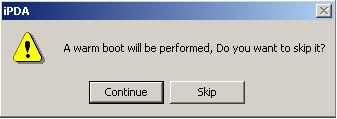
condj "A warmboot will be performed, Do you want to skip it?" MB_CONTINUESKIP
warmboot
.
.
.After the file is written in the PDA, iPDA will execute the condj command and display the next message box:
If "Skip" is selected, iPDA will skip the warmboot command and execute the next command. By clicking "Continue" the warmboot will be performed.
If you don't want to give the user the chance to skip the warmboot command and just warn him, you can use the button combination MB_CONTINUE.
Advance use
If an error occurs, maybe some steps of the script should be repeated, or some of them don't really need to be done because they were done before. In those cases, the advance use of conditionals is mandatory. The use of the options "jump:n" or "go-to:label" is really simple and will be explained in the next examples:
pput config.cfg \Application\config.cfg
condj "The next commands will configure the PDA, Do want to skip them or finish the execution (skips warmboot too)?" MB_CONTINUESKIPSTOP go-to:end_configuration
.
.
.
label end_configuration
warmbootWhen the condj command is executed the next message box is displayed:
If the user don't even want to make the warmboot, he should choose the "Stop" button. Selecting the "Skip" button instead, he will skip all the commands between the condj command and the creation of the label, so the next command to be executed will be the warm boot.
Instead of using the "go-to:label" option, the "jump:n" can be selected. The difference between them is that in the second, the jump has to be measured beforehand, while the first one is friendlier because it allows an easy modification of the script avoiding the recalculation of the jumps on every change.
The following commands are equivalent, only changes the display to the user:
MB_YES [YES] = MB_CONTINUE [Continue] MB_YESNO [YES] [NO] = MB_CONTINUESKIP [Continue] [Skip] MB_YESCANCEL [YES] [Cancel] = MB_CONTINUESTOP [Continue] [Stop] MB_YESNOCANCEL [YES] [NO] [Cancel] = MB_CONTINUESKIPSTOP [Continue] [Skip] [Stop]
This command is used to insert, update or delete parts of a file stored in the PDA using another file stored in a pc.
To search for a part of the file, pamend uses the first and the last not empty lines of the pc file (from now on "tags"). Depending on the action passed as a parameter, pamend will replace the text of the file in the PDA with the text of the pc file (update), delete the PDA text or append the pc text at the end of the PDA file (add).
The comparison options allow to make not case sensitive, not blank spaces consideration, multiple searches or ignore errors.Syntax:
pamend -u|-a|-ua|-d [-i][-m][-c][-s] source_file target_file
Operations:
The tags are searched in the PDA file and one of the following actions is performed:
Update (-u): if the tags are found, pamend will replace the text of the PDA that is between them with the pc file text; if the tags are not found, the user will be warned (unless the "-i" option is set).
Add (-a): if the tags are found, the user will be warned (unless the "-i" option is set). If they are not found, pamend will append the pc file text to the end of the PDA file.
Update or Add (-ua): if the tags are found, an update will be performed; if not, an addition will be made.
Delete (-d): if the tags are found in the PDA file, the text between them will be removed. If not, pamend will warn the user (unless the "-i" option is set).
Options:
-i: ignore search errors.
-m: pamend will search for more than one pair of tags. If more than one pair is found, and this option is not used, the user will be warned.
-s: the comparison will be made removing spaces from the strings.
-c: the comparison is not case-sensitive.Example:
This example consists on showing an update of a file stored in a PDA. The target file is commands.txt and the source file is update.txt:
\Application\commands.txt update.txt \START_PATTERNS
FILE NAMES PATTERNS:
******************************************
* <YYMMDD> year month day
* <DDMMYY> day month year
* <YYYYMMDD> year month day
* <DDMMYYYY> day month yyyy
******************************************
\END_PATTERNS
TIPS:
- how to execute a .bat file ?
run file.bat\ start_patterns FILE NAMES PATTERNS:
******************************************
* <YYMMDD> year month day
* <DDMMYY> day month year
* <YYYYMMDD> year month day
* <DDMMYYYY> day month yyyy
* <YYYY> year four digits
* <YY> year two last digits
* <MM> month
* <DD> day
* <HMS> hour minute second
* <HM> hour minute
* <H> hour
* <M> minute
* <S> second
******************************************
\END_PATTERNS
Now we execute the next script:
pamend -ua -c -s update.txt \Application\commands.txt
pamend will search for the text in commands.txt and update it using update.txt. Since comparison is not case-sensitive and the blanks spaces are not considered, the tags are found and the text is replaced obtaining:
\Application\commands.txt \ start_patterns FILE NAMES PATTERNS:
******************************************
* <YYMMDD> year month day
* <DDMMYY> day month year
* <YYYYMMDD> year month day
* <DDMMYYYY> day month yyyy
* <YYYY> year four digits
* <YY> year two last digist
* <MM> month
* <DD> day
* <HMS> hour minute second
* <HM> hour minute
* <H> hour
* <M> minute
* <S> second
******************************************
\END_PATTERNSTIPS:
- how to execute a .bat file ?
run file.bat
This command finds lines that have a specific substring in order to modify them or replace them with new ones.
Syntax:
preplace [-rline][-i][-m] target_file target_substring new_string
-rline: if the line is found, the whole line will be replaced by "new_string". If this command is not used, preplace will only replace "target_substring" with "new_string".
-i: ignore search errors.
-m: preplace will search form more than one line. If this command is not used, the user will be warned.Example:
This example shows the use of the -rline option using the next script:
preplace -rline config_rline.cfg "10.10.10.133" "IP=10.10.10.133"
preplace config.cfg "10.10.10.133" "192.168.3.44"
config_rline.cfg config.cfg [TERMINAL]
OffOnExtPwr=Yes
PwdWConf=234
PwdExit=307
IPAddr=10.10.10.133
CBMenuMainMenu=1
[DATA]
LocalIPAddr=10.10.10.133[TERMINAL]
OffOnExtPwr=Yes
PwdWConf=234
PwdExit=307
IPAddr=10.10.10.133
CBMenuMainMenu=1
[DATA]
LocalIPAddr=10.10.10.133
The content of each file is the same, but after the execution of the script the income result is different:
config_rline.cfg config.cfg [TERMINAL]
OffOnExtPwr=Yes
PwdWConf=234
PwdExit=307
IP=10.10.10.133
CBMenuMainMenu=1
[DATA]
IP=10.10.10.133[TERMINAL]
OffOnExtPwr=Yes
PwdWConf=234
PwdExit=307
IPAddr=192.168.3.44
CBMenuMainMenu=1
[DATA]
LocalIPAddr=192.168.3.44
These commands allow to copy directories from a PC to a PDA and vice versa. In order to filter files and folders, the use of the wildcards '*' and '?' is allowed.
Syntax:
pgetdir [-c |-i | -r | -o] source_directory target_directory
pputdir [-c |-i | -r | -o] source_directory target_directoryOptions:
-c: Ensures that the target directory is created before start copying the files.
-i: If a file already exists, it continues with the next file/folder with out warning the user.
-r: Copies both directories and files in a recursive way.
-o: Overwrites every file found in the target directory.Special Remarks:
If wildcards and the '-r' option are used, the filter is only applied to the first folder, so the subfolders will be copied along with all their files.Example:
If the next script is executed
pgetdir \test\*.exe \binBackup\
the next result is obtained
\test\
\binBackup\ Doc\
notepad.exe
calc.exe
phones.txt
a1.bmp
flexrpvserver.exenotepad.exe
calc.exe
flexrpvserver.exe
Another example:
pgetdir \test\temp?.txt \temp\
the next result is obtained
\test\
\temp\
Doc\
temp1.txt
calc.exe
phones.txt
temp2.txt
flexrpvserver.exetemp1.txt
temp2.txt
The command psetattribute changes the "read-only" and "hidden" attributes of the files located in a directory. In order to filter some kind of files, the use of the wildcards '*' and '?' is allowed.
Syntax:
psetattribute +r|-r|+h|-h target_pathOptions:
+r/-r: Sets/Unsets the "read-only" attribute.
+h/-h: Sets/Unsets the "hidden" attribute.
Sintax: preg [-a] <registry_key> <target_path>
The registry_key parameter must be enclosed by square brackets.
Abbreviations for main keys:
HKLM : HKEY_LOCAL_MACHINE
HKCU : HKEY_CURRENT_USER
HKCR : HKEY_CLASSES_ROOT
HKU : HKEY_USERS
To export a key and it's subkeys use square
brackets in the following way:
[HKLM\Comm]
To export only the key's values use square
brackets in the following way:
[HKLM]\Comm
The file names to use as arguments for this commands can be absolute names or you could use patterns to create file names depending on the date.
These are the patterns that iPDA supports:
<YYMMDD> year month day
<DDMMYY> day month year
<YYYYMMDD> year(4 digits) month day
<DDMMYYYY> day month year(4 digits)
<YYYY> year (four digits)
<YY> year two last digits
<MM> month
<DD> day
<HMS> hour minute second
<HM> hour minute
<H> hour
<M> minute
<S> second
Examples:
If you run a script on March, 17th 2006 at 12:55 am these will be the results:
<YYMMDD>: 060317
<HM>: 1255
<DD>-<MM>-<YY>: 17-03-06
If a parameter has
spaces you will need to enclose it between quotes.
Example:
pput ".\file to copy.txt" "\copy file.txt"
preg "[HKLM\software\section name]" file.reg
iPDA provides environment variables that can be used to customize each installation and configuration procedure. The value of those variables may change depending on the language of the operating system and the unit's platform. The available environment variables are:
Variables
Values (English version)
%PDA_DESKTOP% \Windows\Desktop %PDA_PROGRAMS% \Windows\Programs %PDA_PERSONAL% \My Documents %PDA_STARTUP% \Windows\StartUp %PDA_RECENT% \Windows\Recent %PDA_FONTS% \Windows\Fonts %PDA_FAVORITES% \Windows\Favorites %PDA_WINDOWS% \Windows %PDA_PROGRAM_FILES% \Program Files %PDA_START_MENU% \Windows\Start Menu %PDA_OEM_VERSION% 6.30.0000 %PDA_OEM_NAME% SYMBOL PPT8800 %PDA_PLATFORM_ID% SYMBOL %PDA_PRESET_ID% SYMBOL