 Key.
Key.Contents / CHAPTER 2 / CHAPTER 4
The IP address shown in the top of display is the terminal IP address.
| RR 10.10.10.99 RR Wireless Telnet - WTn52 Ver X.X.XX - ==================== F1 EMULATION F2 WT Configuration F3 S24 Configuration F4 See Options |
Key [FUNC] [1] to go to connection screens.
| SESSION-NAME 10.10.10.1 Port : 23 [ENTER] Connect [CLR] Exit |
Key [ENTER] to connect, [ESC] to return to main menu, and any oter key to go to the next session.
| Connecting To SESSION-NAME 10.10.10.1 Port : 23 |
While connecting to the host. Wait few seconds. If it is not the good IP address or Port, from main menu do [F2] to change configuration. The default address and port comes from configuration file.
After Telnet connection :
| Connected To 10.10.10.1:23 |
If the terminal is selected
by host, the current terminal type (TERMINAL) appears.
Following the application, key the user and password.
If the terminal is out of S24 radio network range, the terminal holds the connection and asks for retry or abort the session. The following screen appears :
| ****** ERROR ****** RADIO OUT OF RANGE [ENTER] To Retry [CLEAR] To Abort |
If the session is aborted, the Telnet connection may remain opened in the host side and you should manually shutdown the session in the host.
On retry, the terminal try to send the current transaction. Move to a radio covered area to retrieve the host session.
While connected in a telnet session, the session will be closed by the host, or by the user. To close the Telnet connection, key the end sequence. (Normally Ctrl-X), ant the terminal returns to the main menu.
From the Main Menu, key [FUNC] [2] to access to the configuration. This is the active address, until a Bios Boot.
A printer may be attached to the serial port of the PDT. Special 5250 display allows to redirect data flow to the printer. Printer driver in WTn52 is designed for "label" printers instead "line" printers, and data is stored in terminal to allow reprint operations.
While storing printer data, the terminal displays :
| ===== Loading ===== |
Before print, the terminal connects to the printer and displays :
| ==== Connecting ==== |
| ===== Printing ===== |
If printer is not responding, the terminal displays :
|
****** ERROR ****** PRINTER NOT CONNECTED [ENTER] To Retry [CLEAR] To Abort |
After a print operation, the following screen appears :
|
===== PRINTING ===== LABEL PRINTED [ENTER] To Continue [F1] To Reprint |
The scanner activation is done by the trigger keys, depending on the terminal
model. The scanner is activated and configured
by SCANNER
section in configuration file. Each barcode symbology
has a specific section in the same file.
The behavior of the barcode reads in the emulated terminal is configured by the BARCODES
section.
Barcodes will be edited to fit in application fields. see BC_DEDIT
section in configuration file.
PDT Keyboard is "one finger" operating. When a keystroke needs a combination of several keys, those keys should be keyed sequentially (not at same time like PC's Keyboard).
To make a "Function + Control + Up-Arrow" function (e.g. to do a logical scroll up), do the following sequence :
Key.The displayed blinking cursor reflects the keyboard state.
PDT Keyboard changes following the terminal. The same terminal may be shipped with different keyboards. The PDT keyboard has the following states :
| Keyboard state | Key Sequence | Cursor Display |
|---|---|---|
| Normal state locked, (toggle with Alpha key). | [ALPHA] key | [v] |
| Alpha state (in 35 keys terminals) locked, (toggle with Alpha key). | [ALPHA] key | [^] |
| Shift state, single. | [SHIFT] key | [^] |
| Control state, single. | [CTRL] key | [c] |
| Function state, single. | [FUNC] key) | [f] |
| Function-Control or "Alt" state, single. | FUNC]+[CTRL] keys | [a] |
| Shift-Function state, single. | [SHIFT]+[FUNC] keys | [F] |
Locked, means that the state remains locked, and changes at each time the [ALPHA] key is pressed ("toggle" system).
Single, means that the state applies only for the next keystroke, and then returns to the normal previous state.
WTn52 has terminal functions that are called by keyboard keystrokes. The scan codes assignments are done by the configuration file (CHAPTER 5) and may be changed. Scan codes generated by PDT terminals may change following the terminal model or the keyboard model.
Some function keys, are trapped by the PDT operating system and perform some specific functions like "Lamp" (Backlight), "Dark" (dark LCD display), "Light" (dim LCD display), and may not be used for other functions.
See also APPENDIX F "Keyboard
Reference".
See also APPENDIX A "terminal
functions".
You can see the scan code for each key in the terminal
by "[F4] See Options / [F1] FN KEYS / [F1] SCAN
CODES".
The displayed cursor reflects the keyboard state (see 3.VI Keyboard Operation).
The emulated terminal normally has a 24 lines and 80 rows screen. WTN52 allows to configure non-standard display sizes emulation, up to 80 rows and 24 lines (See [EMULATION] section).
PDT have a display with 8 or 16 lines and 20 or 21 rows. WTN52 allows to use it in "double height" (show 8 lines in a 16 lines terminal) to increase text visibility (and / or "double width").
For easy-to-use applications it is recommended to write or adapt them to the physical display size of the hand held terminal.
WTN52 has a "Logical Scroll" mechanism to allow large screen sizes to be mapped into the smaller PDT display (see [SCROLL] section). The map may be fixed or moving controlled by the FixedMode= option.
It is not recommended to use the moving option in an application, because users needs to learn functions keys to scroll, and understand the "Logical Scroll" system.
The "Logical Scroll" system, automatically moves the PDT display into the screen area, following "edges", to show a display area around the cursor position.
User may move too the display area into the screen by using "Logical Scroll Keys".
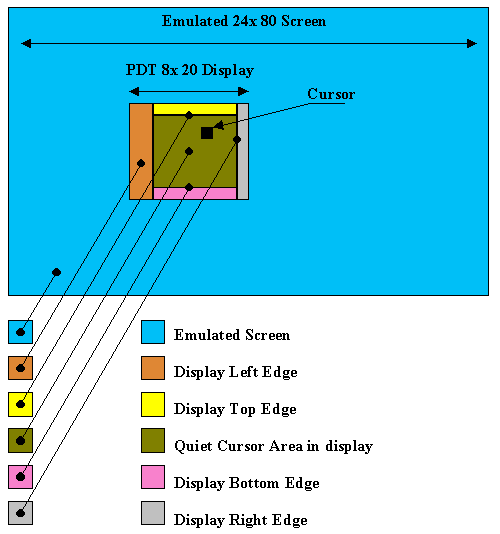
In the fixed mode, the position of the display in the emulated screen is fixed, even if the cursor goes out of the display area.
The RF transmission is a complex program with many protocol layers (RF, Ethernet, IP, TCP) in the operating system and an user application (client). This protocol stack in hand held terminals is subject to unexpected power off conditions (batteries removed, shocks, etc) that may prevent the terminal software to manage correctly some protocol sequences and may "hang" the terminal.
To restart the terminal in proper conditions, it will be necessary to reboot it by a "Bios Boot" command. See Appendix F.II Boot sequences.