 WireLess TelNet Downloader

WIRELESS TELNET DOWNLOADER SofToGo
Contents
1. Features
2. Overview
3. Required configuration
4. Installation
5. Language
6. Starting
7. Open
8. Settings
9. Saving
10. Downloading
1. Features
WTDnl runs under Windows operating systems (2000, 2003 and XP) and allow configuration files download into PDA hand held terminals with WireLess TelNet VT program (WTnVt).
The file transfer is done by radio way over TCP/IP.
2. Overview
| Configuration for WTDnl "WireLess TelNet DownLoader" | 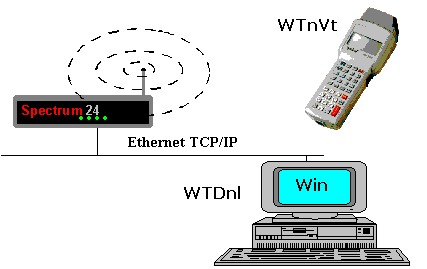 |
3. Required configuration
| WTDnl Server |
|
| Wi-Fi Network |
|
| PDA Terminal |
|
4. Installation
You should install WTDnl with the setup procedure WireLessTelnet_FULL_Vxxx.exe (WTDnl component) from the website. We can install since the section Tools from the website too.
If the computer has already up-to-date the required DLL's (MFC42), you can simply copy (WireLessTelNet\WTDnl et WireLessTelNet\WTDnl\Help) and launch the executable program. Not recommended.
5. Language
| * You can choose the WTDnl language. |
|
| * Under Windows NT, 2000 or XP, you can select an other language than system. You need to restart the application for language changes to take place. |  |

6. Starting
You can start WTDnl :
| * From the menu Start / Programs / WTDnl. (you need to open an existing or create a new settings profile). | |
| * From the WTDnl shortcut in the desktop. (you need to open an existing or create a new settings profile) |  |
| * From the Windows explorer by clicking over an ".wtdnl" existent file that holds the profile. |
|
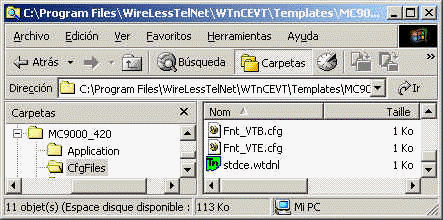
7. Open
| The menu File / Open allows to found an existing settings profile (".wtdnl" file), by browsing the disk. |
|
| With the following dialog box ... |  |

8. Settings
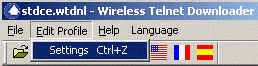
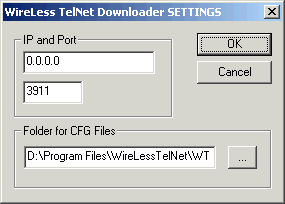
| The menu "Edit Profile / settings" allows to modify the present profile (".wtdnl") for PDA ".cfg" files download. | |
| From the menu. |
|
Modifying the present profile.
|
|
| Look at the folder with the [...] button. Click-on over any ".cfg" file ant then over [Open] button | 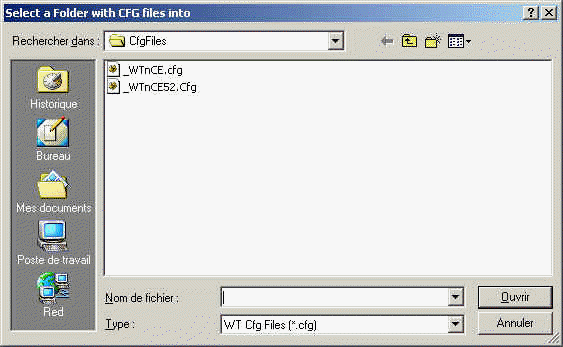 |
9. Saving
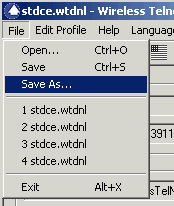
| Save the new settings profile by the "File / Save" menu option. |
|
| With the following dialog box, give a new name to the settings profile file... | 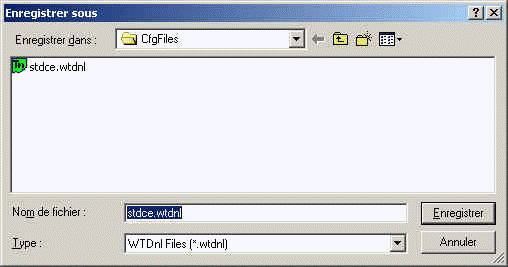 |
10. Downloading
| When WTDnl is configured |
|
| "Local IP Settings" box. |
|
| "Path and Files" box. |
|
|
"Activity" box. |
|
| In the PDA : | Select the option "Download / By Radio"
and give the IP address of the server and the Port number. When
download is done, the PDA goes to the main menu.
|

Visit our site www.softogo.com
Contact us info@softogo.com