User's Guide
Win32 Client
1 Description
2 Starting / Configuring
3 Connecting
4 Sign-in
5 COM Keyboard
6 Scanning
7 Customizing Configuration
1 Description
2 Starting / Configuring
|
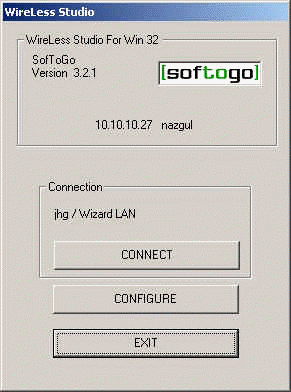
Press the "CONFIGURE" button.
|
 |
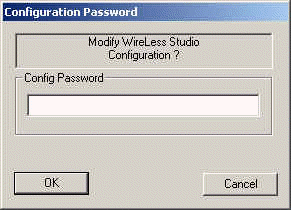
| Enter the configuration password ("config" by default).
|
 |
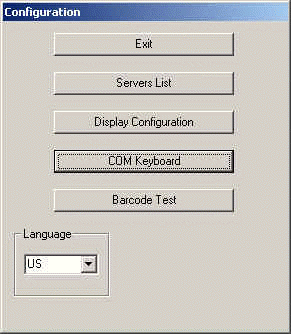
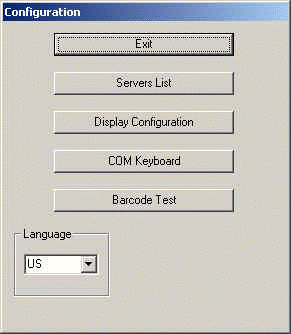
Configuration Menu
- Press the "Servers List" button to
configure the connection parameters.
- Press the "Display Configuration" button
to configure the font and display
parameters.
- Select the language in the combo box.
|
 |
| Severs List |
|
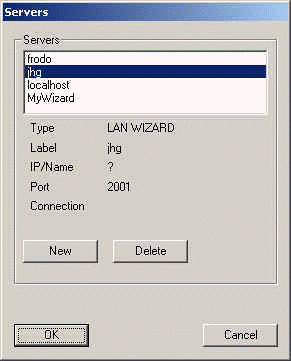
Servers List
Click on the row to select
or hit the "New" button to add a server.
Hit the "Delete" button to delete the
selected line.
The names preceded by a dot (".")
are Wizard names.
Confirm or modify the Port (Default is 2001).
Press "OK" to validate. |
 |
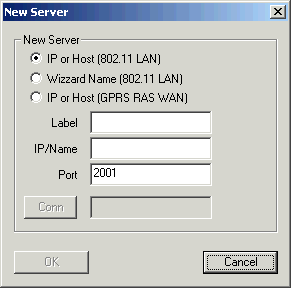
| New Server
Input the new server name.
Select the name type:
Press "OK" to validate. |
 |
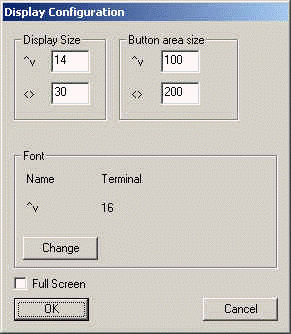
| Display Configuration |
|
| Display
"^v" The height in text rows.
"<>" The width in text columns.
Suggestions:
14 rows x 30 columns display with a Courier New normal font, 16 points height
size
8 rows x 20 columns display with a Courier New normal font, 22 points height
size |
|
Font selection
- Select the Font family (by [<] & [>]).
- For this font family, select the available types (by [<] & [>])
(select Fix fonts).
- Select the size in the combo box.
|

|
3 Connecting
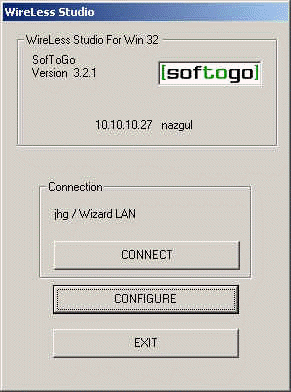
The IP address shown on the top of the display is the terminal IP address.
The IP address or name displayed in the "Connection" frame is the
current configured server.
- Click on the "CONNECT" button to connect to server.
- Click on the "CONFIGURE" button to modify the WS parameters.
- Click on "EXIT" to close the WS Pocket PC client.
While connecting to the host wait for a few seconds. If the
IP
address, Wizard Id, or Port are not correct,
from this menu click on "CONFIGURE" to change the configuration.
|
|
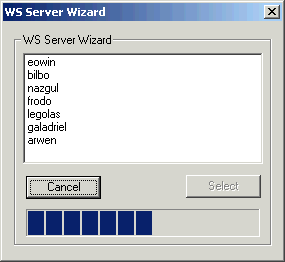
| If a Wizard Id is provided (instead of an IP address), the connection is made
with
the address that matches the Id (all the available servers if "?").
If more than one server is found, this menu is displayed, to allow the
user to
select the server.
- Click on the server name to select it.
- Click on the "Select" button to connect.
|
|
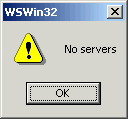
| If the selected server is not found, the "No server" dialog box
appears. |
 |
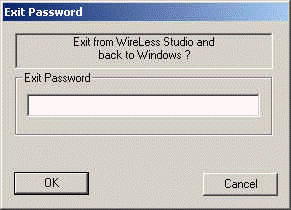
| Exit
To exit you must enter a password ("exit", by default)
|
|
4 Sign-in
You need to sign-in at WireLess Studio Server to select an application to
run. The sign-in is done by the Program Manager (WSPm).
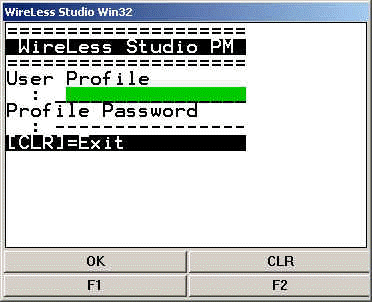
Sign-in by Profile and Password input
Input the profile name, then press [ENTER].
Input the profile password,
then press [ENTER].
The terminal's [CLR] key is emulated by the PC's [ESC] Key.
Hit the [ESC] to completely disconnect from the
WireLess Studio Server.
|
 |
Sign-in by Menu and No Password input
If the "Choice by Menu" and "No
Password" options are selected on WS Program Manager, the screen displayed is as follows:

|
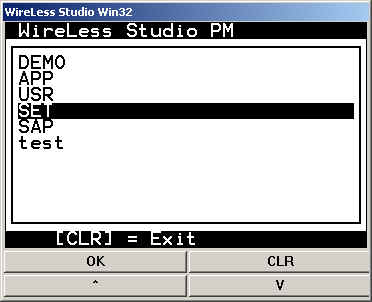 |
Enter the user profile name and then press [ENTER].
Enter the password associated with the profile and then press [ENTER].
If there is only one application associated to the profile, the program runs
directly this application.
If there is more than one application, a menu like the following screen is
displayed.
Press [CLR] (or [CLEAR]) to completely disconnect from the WireLess Server.
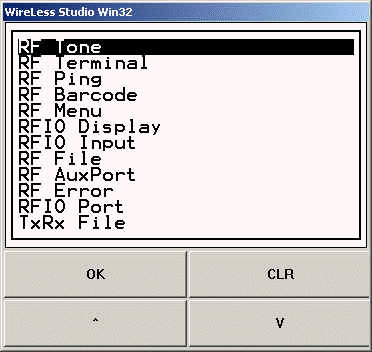
Move the highlighted cursor (in reverse video) with the Up and Down arrows to select
the application, then press [ENTER], or input the option number ([1] for the first, [2]
for the second, and so on).
Press [CLR] (or [CLEAR]) to return to the Sign-in screen.
5 COM Keyboard
This component is not implemented on V4, it has been
replaced by Scanserial option.
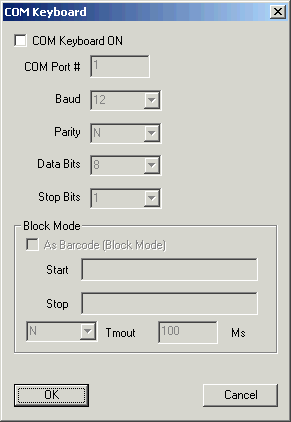
The COM keyboard configuration window allows to set
the communications port for input.
Data entered through the COM port is treated as
a barcode of type 39, but they can be processed to
detect Start and Stop sequences, in Block Mode.
The parameters must be set according to the input
device's specifications: baud rate, parity, data bits
and stop bits.
You must also indicate the COM port number. |
 |
6 Scanning
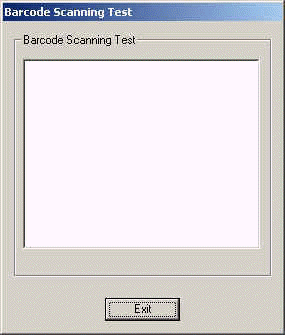
To test the scanner and barcodes:
7 Customizing Configuration
It is possible to customize the PDA configuration modifying the configuration
file. WSt configuration file is a text file containing default values for WSt
options. The name of this file is "_WStCfg.iniedit". It should
be modified only with IniEditor,
an application included on WSt installation.
This file includes:
Sections group the option keys and values. Section names are in
capital letters and in between square brackets, e.g.: [TELNET], denotes the
Telnet section. The order of the sections in the file is not relevant.
Keys are keywords that make sense only inside their own section, and
can't be moved from one section to another. Using lowercase or uppercase is not
relevant for keywords, but it may be useful to make them more readable. Keys
must be followed by "=" sign and the value of the parameter,
e.g.: AutoConnect=No.
Values follow the keys and the "=" sign. Each
parameter expects the value in a fixed format (indicated with the parameter
definition in the form "<format>"). Values may be empty in some
cases.
Formats are:
<Yes/No>
Needs a Yes or No value.
<string / xxxx>
Text ASCII characters, delimited (or not) by the " (inverted commas)
character. If the string is delimited by ", the spaces (20h) are
preserved, otherwise they are ignored. xxxx indicates the units or the meaning
of the value.
<hex-string>
In this format, three characters represent one final character. There are three
ways to supply "hex-strings" (each target character takes always 3
source characters):
| Mnemonic |
Format |
Description |
| "Escaped" |
"/HH" |
A slash ("/" or "\") and a two-digits hexadecimal
value. e.g. \1B for character 27. |
| "Numeric" |
"999" |
Three decimal digits. e.g. 065 for character "A". |
| "Alphabetic" |
"..A" |
Two dots and one alphabetic character. e.g. ..X for character
"X" |
Hex-strings may be delimited by " to be more readable.
<num / xxxx>
Decimal numeric value (0 - 9). xxxx indicates the units or the meaning of the
value.
<word>
Hexadecimal four-digits value, e.g.: A50F.
<uppercase letter>
One uppercase character, e.g.: N.
7.1 Hosts section
This section contains the configuration options for the Host
list.
[HOST]
Name of the section.
Label_XX= <string/ name> (MyWizard)
Name of this connection. This label is displayed to user on the
main connection dialog.
Type_XX= <0 LAN-IP/ 1 LAN-WIZARD/ 2 WAN-GPRS> (1
LAN-WIZARD)
Connection type:
0-LAN IP Host, 1-Wizard, 2-WAN Host
0 (LAN IP Host): You must input a LAN IP or Host name.
1 (Wizard): You must input a Wizard name (auto-discovery).
2 (WAN Host): You must input a GPRS Wan host server IP or name.
IP_XX= <string/ name> (?)
Host name or Wizard ID.
If using LAN or WAN Host (connection type 0 or 2), input IP address or Host
name.
If using Wizard (connection type 1), input Wizard ID or '?' (wildcard).
Can be an IP address, e/g: 10.10.10.25, or a host name, e/g: 'Gandalf', when
using DNS or Wins name resolution protocols.
Port_XX = <num/ port> (8191)
TCP Port Number.
Usually 8191 for WireLess Studio Server.
Default_XX = <0 No/ 1 By default> (0 No)
Connect to default IP if no wizard is present on the network.
0 (No): No default connection.
1 (ByDefault): The IP defined for this connection will be used if no wizard is found.
Use only for LAN IP connections (type 0).
Cnx_XX = <string/ name> (empty)
Name of the RAS connection configured on the system.
For GPRS WAN Host connection only (type 2).
7.2 Display section
This sections contains the display configuration options.
[DISPLAY]
Name of the section.
Height = <num /rows> (12)
Text display height (in text rows).
Width = <num/ columns> (24)
Text display width (in text columns).
MsgTxtFrCol = <black/ red/ green /yellow/ etc.>
(white)
Error message text foreground color.
MsgTxtBkCol = <black/ red/ green /yellow/ etc.>
(black)
Error message background color.
InputTxtFrCol = <black/ red/ green /yellow/ etc.>
(black)
Input field text foreground color.
InputTxtBkCol = <black/ red/ green /yellow/ etc.>
(white)
Input field background color.
NormalTxtBkCol = <black/ red/ green /yellow/ etc.>
(white)
Default background color of empty areas of the screen (input text
foreground/background color is defined by the application).
WantSip = <Yes/ No> (Yes)
Yes=Shows SIP panel (WinCE 300, PPC2003, WM2005) and 'command bar'.
No=Doesn't show SIP panel.
SipScanCode = <hex-string/ scan code> (0019)
Scan Code of the key used to activate the SIP Panel (virtual keyboard). Ctrl-Y
by default.
WantVKbd = <Yes/ No> (Yes)
Yes=Allows Virtual Keyboard to appear on screen (over text), by double-tap.
No=Doesn't allow Virtual Keyboard function.
WantRFButton = <Yes/ No> (Yes)
Yes=Displays application button (RFButton) on screen.
No=Doesn't display application button (RFButton).
WantWBar = <Yes/ No> (Yes)
Yes=Shows the 'WireLess Bar' (battery, RF State, Keyboard state).
No=Doesn't show the 'WireLess Bar'.
WantBarSip = <Yes/ No> (Yes)
Yes=Shows a SIP button in the 'WireLess Bar'.
No=Doesn't show a SIP button in the 'WireLess Bar'.
WBarComm = <Yes/ No/OnOff> (No)
Yes=Shows a COMx: button in the 'WireLess Bar'.
No=Doesn't show a COMx: button in the 'WireLess Bar'.
OnOff=The COMx: button allows to stop/start the serial port.
WinFullScreen = <Yes/ No> (Yes)
Yes=WSt uses all the screen.
No=Uses a part of the screen only. Set WinSizeX and WinSizeY options to set
window size.
WinSizeX = <num> (240)
Window width in pixels. (Only if WinFullScreen=No).
WinSizeY = <num> (240)
Window height in pixels. (Only if WinFullScreen=No).
7.3 Font section
This section groups the options for the Windows font the text
screen will use.
[FONT]
Name of the section.
Family = <string/ font type> (Courier New)
Font type (Family) or 'Face Name'.
Use fixed width fonts only, like 'Courier New'.
Full Name = <string/ font name> (Courier New Bold)
Font full name. Use only available sub-type fonts like 'Courier New Bold'.
FontSize = <num/ font size> (20)
Font size (character height) in pixels.
7.4 Langue section
This section allows to configure the display language.
[LANGUE]
Name of the section.
ID = <US/FR/SP> (US)
Language ID (US/FR/SP).
US - English.
FR - French.
SP - Spanish.
7.5 Password section
This section includes the password configuration options.
[PASSWORD]
Name of the section.
Config = <num/ password> (234)
Password to access to configuration menu.
Exit = <num/ password> (307)
Password to exit the application.
7.6 Scanner section
This section contains the default parameters of the scanner.
[SCANNER]
Name of the section.
WaveFile = <string/ file name> (empty)
Name of the beep wav file (only for terminals with sound hardware).
If empty, frequency is used.
BeepFrequency = <num/ hertz> (3200)
Beep frequency in Hertz (used if Wavefile is empty).
BeepTime = <num/ milliseconds> (200)
Beep duration. 0 for no beep.
7.7 Bluetooth section
This section allows to connect a bluetooth device as serial
input device scanner.
Configure this option in WinCE4.20 / PPC2003 platforms only.
[BLUETOOTH]
Name of the section.
On = <Yes/No> (No)
Yes=Uses Bluetooth driver as COMx: port.
No=Doesn't use it.
Configure this option in WinCE4.20 / PPC2003 platforms only.
Port = <num/ port> (6)
Virtual COMx: port for bluetooth inputs.
COMx: port number from 2 to 10.
This port number should be the same port as the one on SCANSERIAL section.
Mac = <hex-string> (000000000000)
MAC address of the BlueTooth device to get.
12 digits in hexadecimal characters.
Channel = <num/ channel> (1)
BlueTooth RF channel to use.
7.8 Scanserial section
This section allows to connect a serial scanner.
[SCANSERIAL]
Name of the section.
On = <Yes/No/OnOff> (No)
Yes=Uses serial port as scanner entry.
OnOff=Serial port is activated by a button on the 'WireLess Bar'.
Port = <num/ port> (6)
Hardware or Virtual COMx: port for external scanner input.
COMx: port number from 2 to 10.
This port number will be the bluetooth virtual port or a physical COMx:
port.
Baud = <num/ baudios> (9600)
Baud rate.
Terminator = <num> (0)
Terminator character for serial input. 0 means 'all control characters
(<0x20)'.
WakeUp = <Yes/No> (Yes)
Yes=Restart the serial port if the PDA is turned off and on.
Tmout = <num/ milisegundos> (500)
Yes=Terminates an input operation by timeout.
7.9 DHCP section
This section allows to renew DHCP address at each connection.
[DHCP]
Name of the section.
NewIpAtCnx = <Yes/No> (No)
Yes=Requests a new IP address at each connection.
Suitable for roaming between separated networks.
Tmout = <num/ seconds> (20)
Time (in seconds) to wait for a new IP address. An error message appears at
timeout.
7.10 Alive section
This sections allows to configure WireLess Studio to ping the
Host periodically.
[ALIVE]
Name of the section.
KeepAlive = <Yes/No> (No)
Yes=Ping the host.
No=Do not ping the host.
Seconds = <num/ segundos> (120)
Waiting time (in seconds) to ping the host.
7.11 FNkeys section
This section contains function key mapping options. When used,
standard function keys will be mapped into other keys.
[FNKEYS]
Name of the section.
Use = <Yes/No> (No)
Yes=Use user-defined scancodes as function keys.
No=Use standard function keys.
FN01 = <hex-string/ scancode> (002A)
Function 1 user-defined key scancode.
...
FN10 = <hex-string/ scancode> (0000)
Function 10 user-defined key scancode.
7.12 Debug section
This section contains the options that allow to create a file
with debug information.
[DEBUG]
Name of the section.
Level = <num> (0)
Debug level.
Debug level 0 means no debug (default value).
Debug level 99 is the highest level.
Name = <string/ file name> (WSPpc.log)
Name of the log file.
Use only for debugging purposes.
Warning: This file will grow indefinitely.
7.13 Terminal section
This section allows to configure specific parameters of the
terminal.
[TERMINAL]
Name of the section.
CtrlEsc = <Yes/No> (No)
Yes=Enables WinCE to process Ctrl-Esc keystroke.
No=Blocks Ctrl-Esc keystroke.
KeyTime = <num/ seconds> (20)
Default timeout for user input (keyboard, scanner, etc.).
Whenever the application requires a timeout for user input, this parameter will
be used by default.
7.14 Voice section
This section allows to configure VOICE EDITION client specific
parameters.
[VOICE]
Name of the section.
UseTts = <Yes/No> (No)
Yes=Uses TTS (Text To Speech).
No=Doesn't use it.
UseAsr = <Yes/No> (No)
Yes=Uses ASR (Automatic Speech Recognition).
No=Doesn't use it.