Symphony/WireLess Deployer Client installation requires iPDA and Active Sync utilities. iPDA is automatically installed with the WireLess Deployer package. Active Sync can be downloaded from
Active Sync Official
Site.
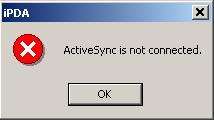
ActiveSync must be connected to perform the installation of any client. If ActiveSync is not connected, you will see the following message:
If it is connected, the Active Sync icon will turn green: 
Symphony/WireLess Deployer Client can be executed in two different ways: Background mode or Launcher mode. The execution mode must be determined on the client configuration
(Application section, laucherMode option). See
Configuring and installing the
Client.
The user can access the Launcher from the desktop shortcut or through Start/Programs menu.
On the contrary, on Launcher mode, the screen of the PDA looks like this:
Application Screen:
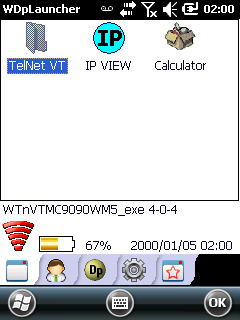
Main Screen:

Launcher mode has the following features:
- limited user actions (prevents any access to the Operating System)
- manual update of the mobile unit
- password protection for exit
- status bar with the status of some keys (shift, ctrl, etc.), the bluetooth, the Wi Fi network, etc.
Symphony/WireLess Deployer Client allows to request for Remote Control by GPRS. In case of any problem, the user can use this feature to send a Remote Control session request to the Console.
In order to start a Remote Control request from the client, the user must press on
RC button, which is located on Admin tab. The following dialog will appear:
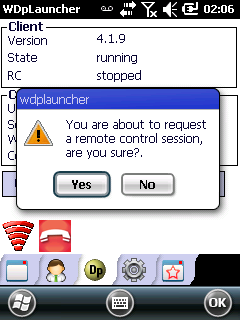
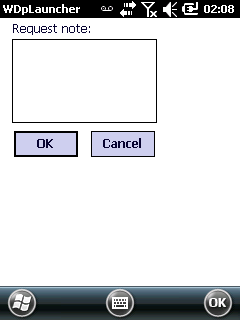
If the user presses NO, no request will be started and the application will return to Admin tab. If the user presses YES, the application will open a screen where it is possible to write a request note, which will be sent to the Console Administrator:
When the Symphony Console receives the Remote Control request, a message will appear on the bottom of the window:
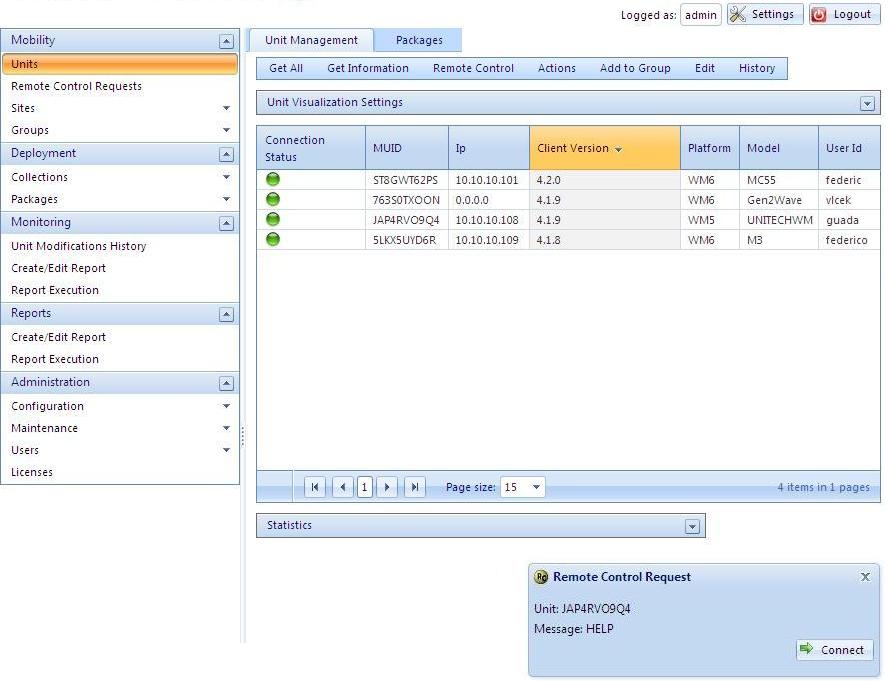
The Administrator should click on the Connect button and the remote control session will start.

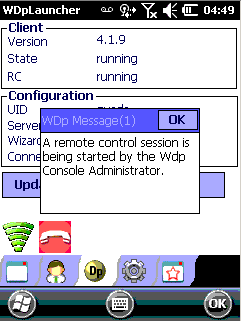
As soon as the Remote Control is started , a pop up window will appear on the screen of the Client, informing that the Administrator is in control of the mobile unit: